
Knowing how often to clean gaming PC can save you from overheating, thermal throttling, and costly repairs. There’s no single answer — it depends on your environment, usage, and components. This guide breaks down everything from dusting schedules to thermal paste and GPU thermal pad replacement timelines, based on real community experience.
Keeping your gaming PC in peak condition isn’t just about having the latest hardware—it’s about maintaining what you already own. After diving deep into Reddit threads, Tom’s Hardware forums, and countless user experiences, I’ve compiled the definitive guide on how often you should clean your gaming PC and replace thermal materials.
How often should you clean your gaming PC?
The quick answer
The question of how often to clean your gaming PC comes up constantly in forums — and the consensus is always the same: monitor your temperatures and let them guide you.
According to the PC gaming community, there’s no one-size-fits-all answer, but here are the general guidelines:
- Light dusting/filter cleaning: Every 1-2 weeks to 1 month
- Surface cleaning: Once a month
- Internal deep cleaning: Every 3-6 months
What the community says
The consensus across multiple forums is clear: clean your PC when it needs it, not on a rigid schedule. As one Tom’s Hardware user put it, dust accumulation varies wildly depending on your environment. A light coat of dust won’t hurt anything—most PCs get that after a week or two. It needs cleaning when it starts affecting temperatures.
Factors that increase cleaning frequency
You’ll need to clean more often if:
- Your PC is on the floor (especially carpeted floors): Floor-level PCs collect 2-3x more dust
- You have pets: Cat and dog hair accelerates dust buildup significantly
- You smoke indoors: Tobacco tar creates sticky residue that traps dust like glue
- You live in a dusty environment: Construction nearby, open windows, dry climates
- Your case lacks dust filters: Unfiltered air means direct dust accumulation on components
One user reported cleaning every 4-6 weeks when their PC was on the floor, but switched to every 6+ months after moving it to their desk—a dramatic difference.
Signs it’s time to clean
Don’t just clean on a schedule—watch for these warning signs:
- Rising temperatures under normal loads
- Fans running louder or at higher speeds
- Visible dust on intake vents or filters
- Decreased gaming performance (thermal throttling)
- System shutdowns under load
Thermal paste replacement: How often is really necessary?
The surprising truth
Here’s where community opinions differ dramatically from some manufacturer recommendations. The real answer? Much less often than you think.
Quality thermal paste lasts 3-8 years
Multiple experienced users report that high-quality thermal paste can last 5-8 years or more without degradation. One Tom’s Hardware moderator stated: “Any halfway decent paste, left alone, will last 8 years ± a year.” Another user reported running a 4790K for 6 years with the original paste without heat issues.
The 2-3 year guideline is conservative
While many guides recommend replacing thermal paste every 2-3 years, this appears to be overly cautious. The PC enthusiast consensus is: replace it when temperatures rise, not on a schedule.
When you SHOULD replace thermal paste
Replace your CPU/GPU thermal paste when:
- Temperatures are rising over time despite normal usage
- You’re experiencing thermal throttling (performance drops during intensive tasks)
- Fans are constantly running at high speeds to compensate
- You’re removing the cooler anyway (for upgrades or maintenance)
- It’s been 5+ years and you want peace of mind
Quality matters more than frequency
Users consistently report that paste quality affects longevity more than usage patterns. As one user noted: “It’s the cheaper crap that may require it sooner. So done right the first time, will last longer than the owner has use for the pc.”
Recommended brands mentioned across forums:
- Arctic MX-4 or MX-5
- Thermal Grizzly Kryonaut
- Noctua NT-H1 or NT-H2
- Arctic Silver 5
Don’t overthink it
Perhaps the best advice comes from a forum veteran: “There’s absolutely no reason to change paste every year. My wife used a Dell PC for about 10 years, never changed paste or had heat issues.”
The key takeaway: Monitor your temperatures. If they’re fine, leave it alone.
Thermal pads: The forgotten component
When to replace GPU/component thermal pads
Thermal pads are far more durable than thermal paste. The community consensus:
- High-quality pads: Replace after 5-6 years
- Budget/factory pads: May need replacement after 3-4 years
- Heavy use (mining/rendering): Check every 2-3 years
Signs your thermal pads need replacement
- VRAM temperatures running unusually high
- Memory errors or crashes during intensive tasks
- Visible degradation when inspecting (dried out, cracked, or crumbling)
- Poor contact after reseating components
The reuse debate
When you remove a GPU heatsink, can you reuse the original thermal pads? According to users who’ve done it:
- If the pads look intact and pliable: Reusing is generally fine
- If they’re torn, dried, or compressed: Replace them
- For optimal performance: Replace with higher-quality aftermarket pads
One user reported reusing old pads after a repaste and getting excellent results, noting the pads were “greasy but not bad.”
Thermal pad replacement is optional during repasting
You don’t need to replace thermal pads every time you change thermal paste. They last significantly longer than paste. However, if you’re already disassembling your GPU and notice degraded pads, it’s worth doing both at once.
Creating your maintenance schedule
The practical approach
Based on community experiences, here’s a realistic maintenance schedule:
Monthly:
- Check and clean dust filters (if equipped)
- Quick visual inspection of intake vents
- Monitor temperatures during gaming
Every 3-4 Months:
- Open case and blow out dust with compressed air
- Check fans for dust buildup
- Verify all fans are spinning properly
Every 2-3 Years:
- Monitor temperatures closely
- Consider thermal paste replacement if temps are rising
Every 5+ Years:
- Plan for thermal paste replacement
- Consider thermal pad replacement if experiencing issues
- Deep clean and inspection
The temperature-based approach (Recommended)
Instead of rigid schedules, monitor your system:
- Establish baseline temperatures when your PC is new/freshly maintained
- Check temperatures monthly during normal gaming
- Take action when temperatures rise 5-10°C above baseline
- Clean first, repaste second: Dust is usually the culprit, not dried paste
Best cleaning practices from the community
Essential tools
- Compressed air (cans or electric blower)
- Microfiber cloths
- Isopropyl alcohol (70%+ for cleaning, 90%+ for thermal paste removal)
- Soft brush for stubborn areas
- Anti-static wrist strap (optional but recommended)
The cleaning process
- Power down completely and unplug from the wall
- Hold the power button for 30 seconds to discharge capacitors
- Take your PC outside or to a well-ventilated area (dust goes everywhere)
- Hold fans in place when blowing air to prevent bearing damage
- Use short bursts of compressed air, not continuous spray
- Pay special attention to:
- CPU cooler fins
- GPU heatsink and fans
- Case fans (intake and exhaust)
- PSU intake (blow from inside out)
- Dust filters
What NOT to do
- Don’t use a vacuum inside your case: Static electricity risk
- Don’t let fans spin freely when cleaning: Can damage bearings
- Don’t use water or harsh chemicals: Stick to isopropyl alcohol
- Don’t skip the power discharge step: Safety first
Special considerations
Dust filters are your best friend
Multiple users emphasized that dust filters dramatically reduce cleaning frequency. If your case doesn’t have them, consider adding magnetic filters to intakes—they’re cheap and make a huge difference.
Elevate your PC
Getting your case off the floor can cut dust accumulation by 50% or more. Consider a desktop stand or simply placing it on your desk.
Environment control
- Keep your room clean
- Use positive air pressure in your case (more intake than exhaust)
- Consider an air purifier if you live in a particularly dusty area
- Close windows during high-pollen seasons
The bottom line
After analyzing hundreds of user experiences and expert opinions, here’s what really matters:
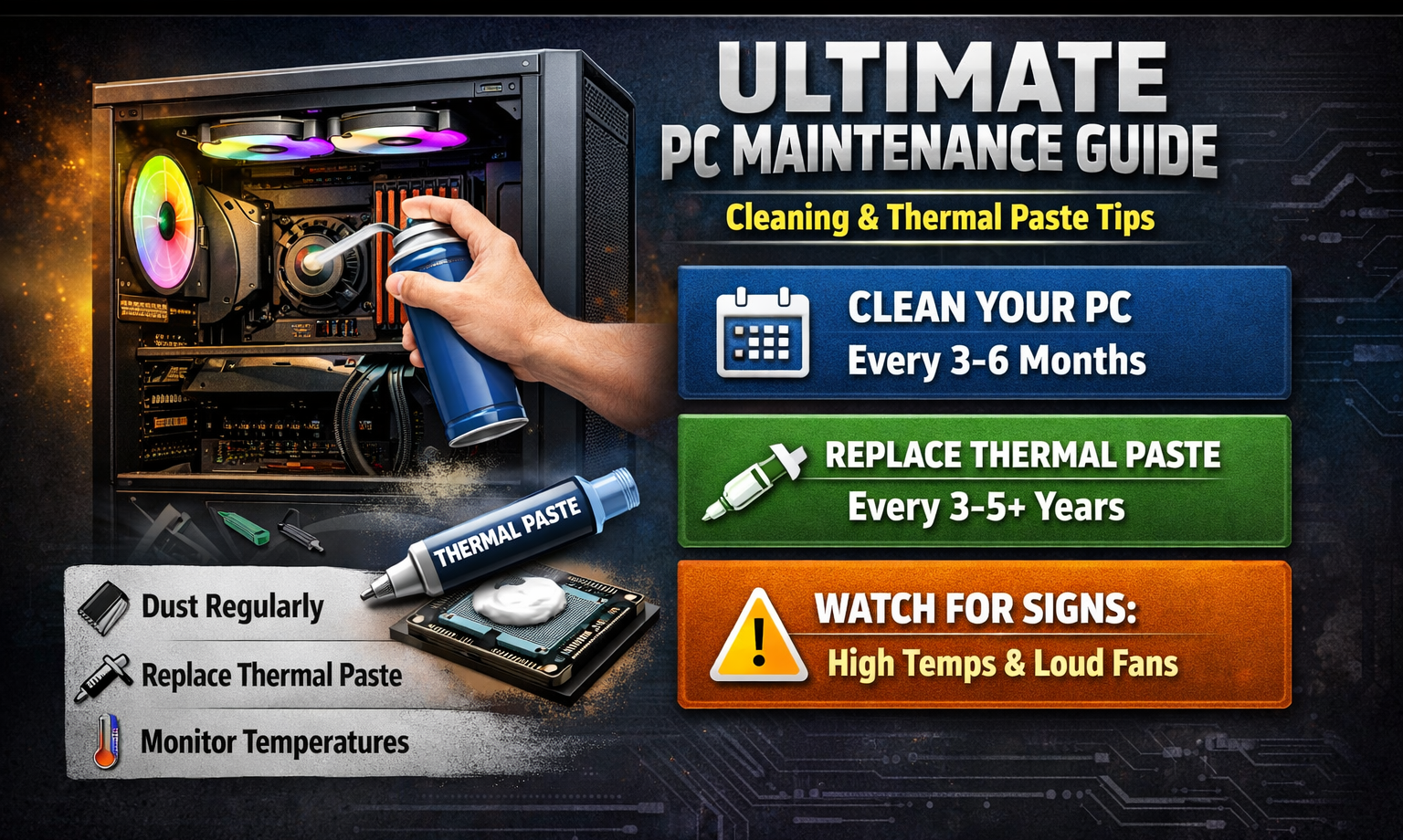
- Clean your PC every 3-6 months, adjusting based on your environment
- Replace thermal paste every 3-5+ years, or when temperatures rise
- Replace thermal pads every 5-6 years, or when VRAM temps increase
- Monitor temperatures regularly—they’ll tell you when maintenance is needed
- Don’t fix what isn’t broken—if temps are fine, you’re probably fine
The PC community has learned through experience that regular light cleaning prevents the need for heavy maintenance. Dust is almost always a bigger problem than degraded thermal paste. Focus on keeping your system clean, monitor your temperatures, and address issues as they arise rather than following rigid schedules.
Your gaming PC is an investment—treat it well, but don’t overthink it. A little preventive maintenance goes a long way, but you don’t need to be obsessive. Clean when it’s dusty, replace paste when it’s hot, and enjoy your games in between.
Have your own maintenance experiences? What schedule works best for your setup? The beauty of PC ownership is finding the routine that works for your specific situation.